Social Media Approval Workflow: A Template for Agencies
A copyable social media approval workflow for agencies: stages, who does what, suggested turnaround times, a QA checklist and a client message.
You sent the roofer’s posts on Tuesday. On Friday he replies “can we change the photo on the second one?” By then the post was supposed to be live, the next week’s batch is already made, and you’re rebuilding it at 9 PM.
Most agencies don’t lose time making posts. They lose it between “here are your posts” and “looks good.” A clear social media approval workflow closes that gap: everyone knows what happens next, who does it, and how long they have.
Below is a template you can copy into your onboarding doc today. It’s written for small agencies working with local businesses, but business owners who work with an agency will find their side of it too.
Why approvals drag on
Approval delays rarely come from bad posts. They come from a process nobody agreed on:
- No named approver. The owner, the office manager and the owner’s spouse all have opinions. Nobody has the final say.
- Posts sent one at a time. Five separate messages on five separate days means five chances to get buried in a client’s inbox.
- No deadline. “Let me know what you think” has no end date, so the client answers when they get to it.
- Open-ended changes. Every round brings new ideas, and a simple post turns into a project.
- Feedback in five places. Some in a text, some in an email, some on a phone call you didn’t write down.
The template below fixes all five.
The approval workflow template
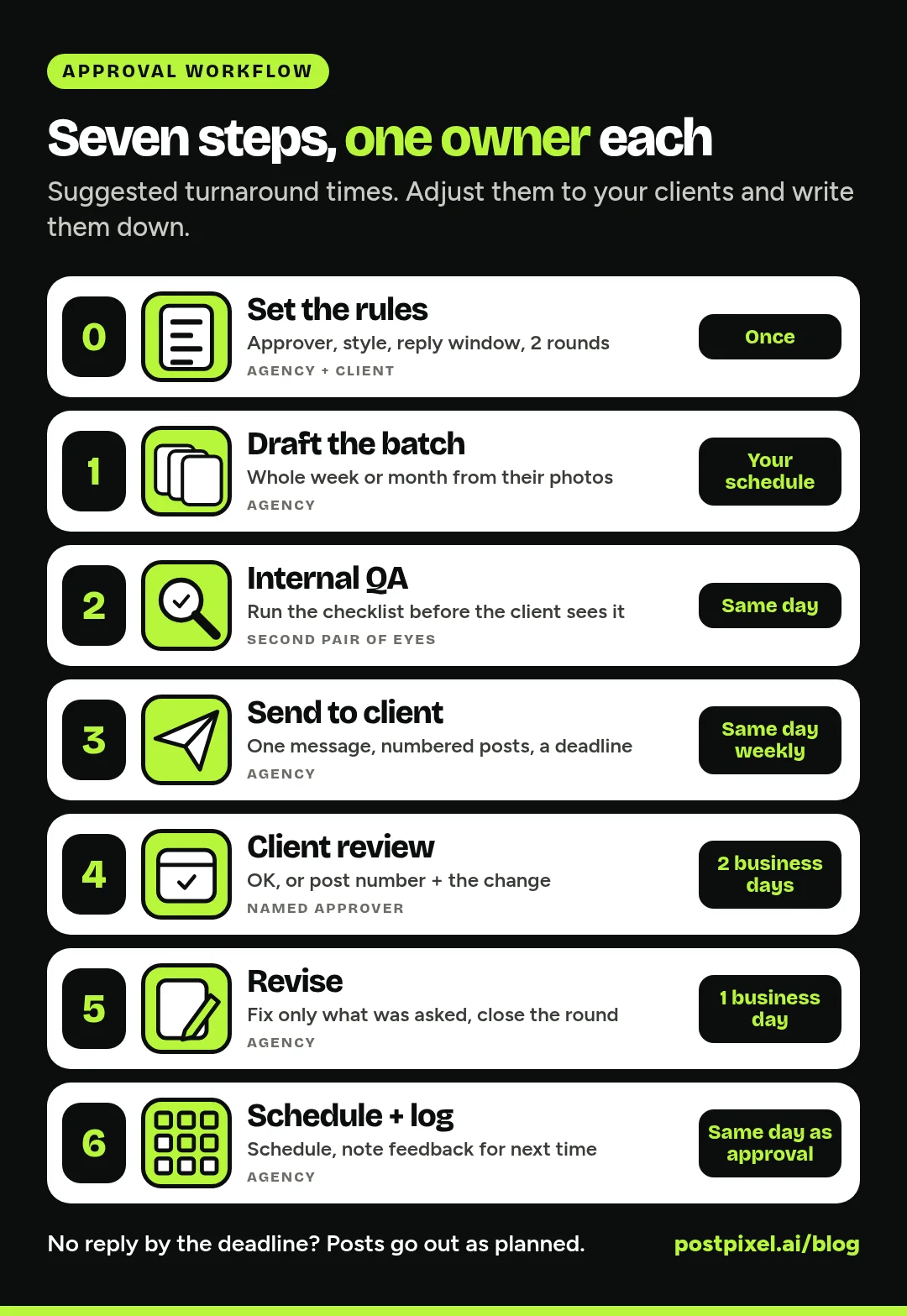
Here’s the full flow. The turnaround times are suggestions. Adjust them to your clients, then write them down so nobody has to guess.
| Stage | Who | What happens | Suggested turnaround |
|---|---|---|---|
| 0. Set the rules | Agency lead + client | Agree on the approver, approval style, reply window and number of change rounds | Once, at onboarding |
| 1. Draft | Agency | Make the whole batch for the week or month from the client’s photos | Your own schedule |
| 2. Internal QA | A second person on your team (or you, the next morning) | Check facts, brand, spelling and links against the checklist | Same day |
| 3. Send to client | Agency | One message with every post in the batch and a clear deadline | One day a week, same day every week |
| 4. Client review | The named approver | Approve, or ask for specific changes | 2 business days |
| 5. Revise | Agency | Make the requested changes, confirm, and close the round | 1 business day |
| 6. Schedule and log | Agency | Schedule approved posts and note any feedback for next time | Same day as approval |
Stage 0: Set the rules before the first post
Do this in the contract or the onboarding call. Agree on:
- One approver. One person gives the final yes. Others can comment, but only one person approves.
- Approval style. Does this client want to see every post, or are they happy for you to run your own QA and post? Both are fine.
- Reply window. For example: “If we don’t hear back within two business days, we’ll post as planned.” Most clients are relieved, not annoyed.
- Change rounds. Two rounds per batch is plenty. A third round means the brief is off, which is a call, not an edit.
- What always needs a yes. Prices, discounts, guarantees, photos with customers or staff in them, and anything that sounds like a promise.
Stage 1: Draft the whole batch
Make every post for the period in one sitting, from the client’s own photos. Batching is what makes one weekly approval possible. For home service clients, how to turn job-site photos into a month of social posts shows how far one week of photos can stretch.
Stage 2: Internal QA before the client sees anything
Most small agencies skip this stage, and that’s why clients end up proofreading. Once a client finds a wrong phone number, they start checking everything, and every approval gets slower.
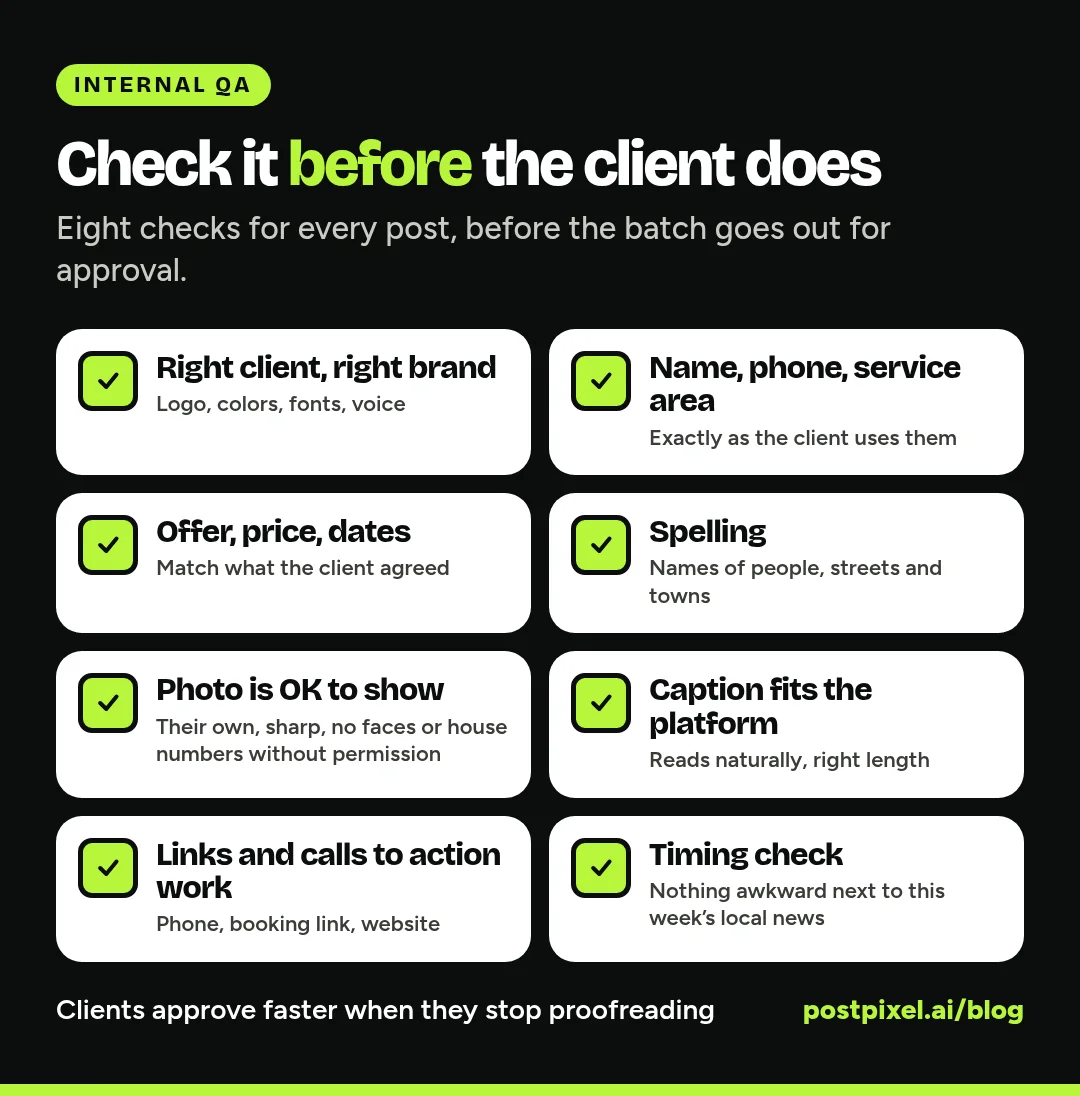
Copy this QA checklist:
- Right client, right brand (logo, colors, fonts, voice)
- Business name, phone number and service area are correct
- Any offer, price or date matches what the client actually approved
- Spelling, especially names of people, streets and towns
- Photo is the client’s own, sharp, and OK to show (no customer faces or house numbers without permission)
- Caption reads naturally and fits the platform it’s going to
- Links and calls to action work
- Nothing that could read badly next to local news this week
Stage 3: Send one message with the whole batch
Send everything in one message, on the same day each week, with the deadline in the message itself. Number the posts so feedback is easy to point at (“change the photo on #3”).
Stage 4: Client review
For each post, the client approves it, asks for a specific change, or says nothing (and the reply window applies). Ask for feedback tied to a spot (“swap the truck photo for the finished deck”), not a feeling (“make it pop”).
Stage 5: Revise and close the round
Make the changes, send back only the changed posts, and say what happens next: “These go out on the dates shown unless you tell us otherwise by Thursday.” That sentence ends the round. Without it, rounds stay open forever.
Stage 6: Schedule and keep a feedback log
Schedule approved posts the same day. Then add any repeat feedback to the client’s do and don’t list. If a client tells you twice they say “free estimate,” not “quote,” that belongs in their brand notes, not your memory.
A sample client approval message
Copy this, change the names and dates, and send it every week on the same day.
Hi Sam,
Here are next week’s 4 posts for Fernwood Roofing (numbered 1 to 4). They’re set to go out Monday, Wednesday, Friday and Saturday.
Can you take a look by Thursday at 5 PM? For each post, just reply with:
- OK if it’s good to go, or
- the post number + the change (for example: “#3, use the photo of the finished roof instead”)
If we don’t hear back by Thursday, we’ll post them as planned. Post #2 mentions the $250 off gutter guards offer, so please double-check the dates on that one.
Thanks,
Jordan
It has one deadline, tells the client exactly how to reply, flags the one post that needs their eyes, and says what happens if they’re busy.
How to handle the tricky cases
Urgent and timely posts
Storm damage, a holiday closure, a same-week event. Agree on a fast lane: a text with the post and “reply OK within 2 hours.” Keep it for real urgency.
Clients with more than one decision-maker
Put the name of the person with the final say in writing. Others can comment, but one person approves. If two owners must agree, ask for one combined reply.
A client who never replies
That’s what the reply window is for. If a client goes quiet for weeks, stop chasing post by post. Call them, ask if they’d rather you run QA and post, and confirm by email.
Sensitive posts
Anything about an accident, a complaint, a bad review or a staff member leaving should never be posted on silence. Make those “explicit yes only” in your rules.
If you’re the business owner on the other side
If an agency runs your social media, you can make approvals painless for both of you:
- Pick one person to approve, and tell your agency who it is.
- Block ten minutes on the same day each week to review the batch.
- Point at specific changes (“#2, wrong phone number”) instead of general reactions.
- Tell them about offers, closures and events at least a week ahead.
- If you trust their work, say so, and let them post without approval for routine posts.
How approvals work in PostPixel
PostPixel is an AI social media tool that turns a business’s own photos into finished, on-brand posts. For agencies, each client gets a separate workspace with its own Brand Kit, so posts made in one workspace use only that client’s logo, colors, fonts and voice.
Approval is optional and you set it per client:
- Run your own QA. Your team reviews, then you schedule or post now.
- Invite the client to approve. Invite them into their workspace and they get their own login. When you invite someone, you choose an access level: Full Access, Comment & Approve (which can view, comment on and approve posts, but can’t create, edit or delete them), or View Only.
On the Teams and Agency plans, Comment & review management adds a review screen for each post. You can click the image to pin feedback to an exact spot, mark it as a comment or as needing changes, and approve the post once the requested changes are addressed. The Precision editor, on every plan, lets you select or brush over one area of a post and change just that part, so a small fix doesn’t mean redoing the post.
To keep an eye on the queue, each workspace dashboard has a monthly coverage calendar card that shows posts as scheduled, needing approval or published.
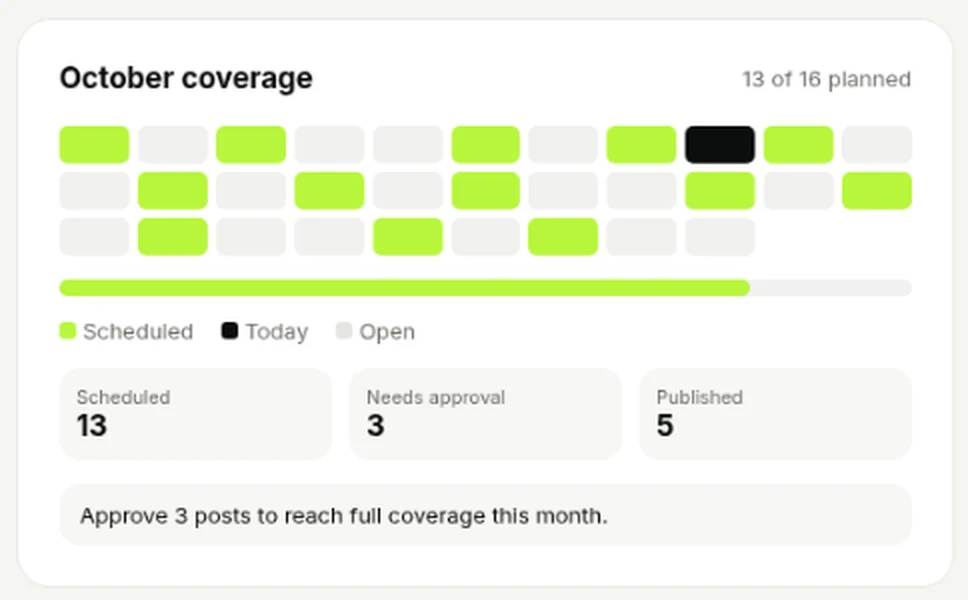
The coverage card on a workspace dashboard: approvals still waiting show up next to scheduled and published posts.
Approved posts can go to Facebook, Instagram, LinkedIn and Google Business Profile (when the client has connected it and it’s selected for that post).
More than 500 companies have signed up for PostPixel, and it saves up to 20 hours a month on content creation. The Agency plan is $99 a month with 3 client workspaces included, then $37 a month for each extra client workspace. For a single business, plans start from $49 a month. There’s a 7-day free trial, and you can cancel anytime.
For the bigger picture on running many clients at once, read how agencies manage social media for multiple clients without burning out. If you’re planning to grow, how to scale your agency with automated social media is a good next step.
FAQ
What is a social media approval workflow?
It’s the agreed set of steps a post goes through from draft to published: who drafts it, who checks it, who approves it, and how long each step takes.
How long should a client have to approve social media posts?
Two business days works for most weekly batches. Give urgent posts a shorter fast lane, such as two hours, and agree on both at onboarding.
What happens if a client doesn’t respond?
Agree on a reply window up front: if there’s no answer by the deadline, the posts go out as planned. Make sensitive posts the exception. Those only go out with an explicit yes.
Do clients have to approve every post?
No. Some clients want to see everything, others are happy for you to run your own QA. In PostPixel it’s your choice for each client workspace: invite the client to approve, or review the posts yourself and publish.
Start with one client this week
You don’t need to roll this out to every client at once. Pick the client whose approvals cause the most stress, send them the rules from Stage 0, and use the sample message for their next batch. Then do the next one.
Start a 7-day free trial, set up a workspace for one client, and run their next batch through the template. No contracts, and you can cancel anytime.