New PostPixel Dashboard: Coverage Calendar and Analytics
What's new in the PostPixel dashboard: a coverage calendar to spot gaps, a product tour and how-to guides, and analytics. Plus one reconnect step.
If you run a plumbing, roofing or HVAC business, you probably don’t open your social media tools to look at charts. You open them to answer two questions. Is something going out this week? And is it working?
The new PostPixel dashboard is built around those two questions. It brings planning, guidance and performance into one place.
What’s new at a glance
- Coverage calendar. See your scheduled content and spot gaps, so your accounts stay active.
- Interactive product tour and how-to guides. Step-by-step help for exploring features and getting more out of PostPixel.
- Social analytics. See how your posts are performing across your connected accounts.
- One action required. Reconnect your social media accounts to enable analytics. Everything you’ve already scheduled stays scheduled, and nothing is lost.
The coverage calendar: see what’s scheduled and what’s missing
Most small businesses don’t have a posting problem. They have a gap problem. The week gets busy, a crew runs late, and suddenly nothing has gone out for ten days. Nobody decided to stop. It just wasn’t visible.
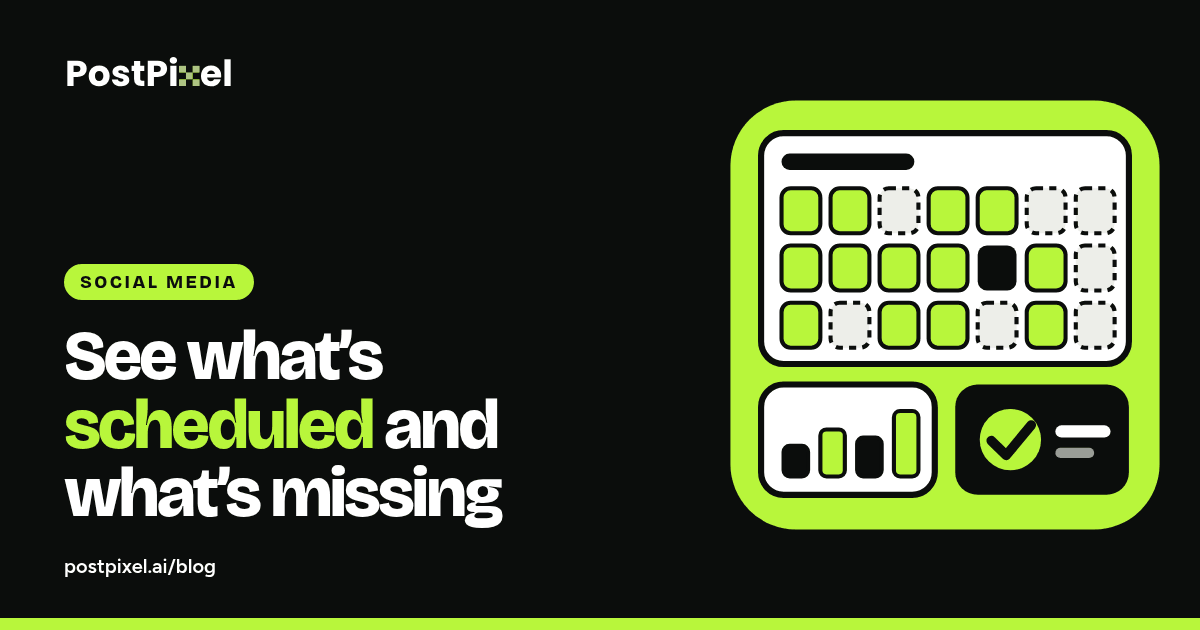
The coverage calendar makes the gaps visible. It’s a monthly card on your dashboard that shows your posts as scheduled, needing approval or published. At a glance you can tell which days are covered, which are open, and what’s waiting on your approval. There isn’t a separate calendar page to learn, so checking it takes seconds.
How to use it to find gaps
- Look ahead, not back. Start with the rest of the current month. Past days are done. Upcoming open days are where you can still act.
- Look for runs of open days. One open day is fine. Three or four in a row is a quiet stretch, and your followers will notice it before you do.
- Clear the approval queue first. Approving posts that are waiting fills days without making anything new.
- Then fill what’s left. Create or schedule posts for the remaining open days, using your own job photos.
If you’re short on photos, our guide to turning job-site photos into a month of social posts shows how far one week of pictures can go. For a post type that works well for contractors, see before-and-after posts for contractors.
A home service tip: watch for weather delays and holiday weeks. That’s when gaps pile up, and if you can see them coming on the calendar, you can schedule ahead instead of scrambling.
The weekly 10-minute dashboard check
A dashboard only helps if you look at it. Pick one time each week, such as Monday before the first job, and run this routine.
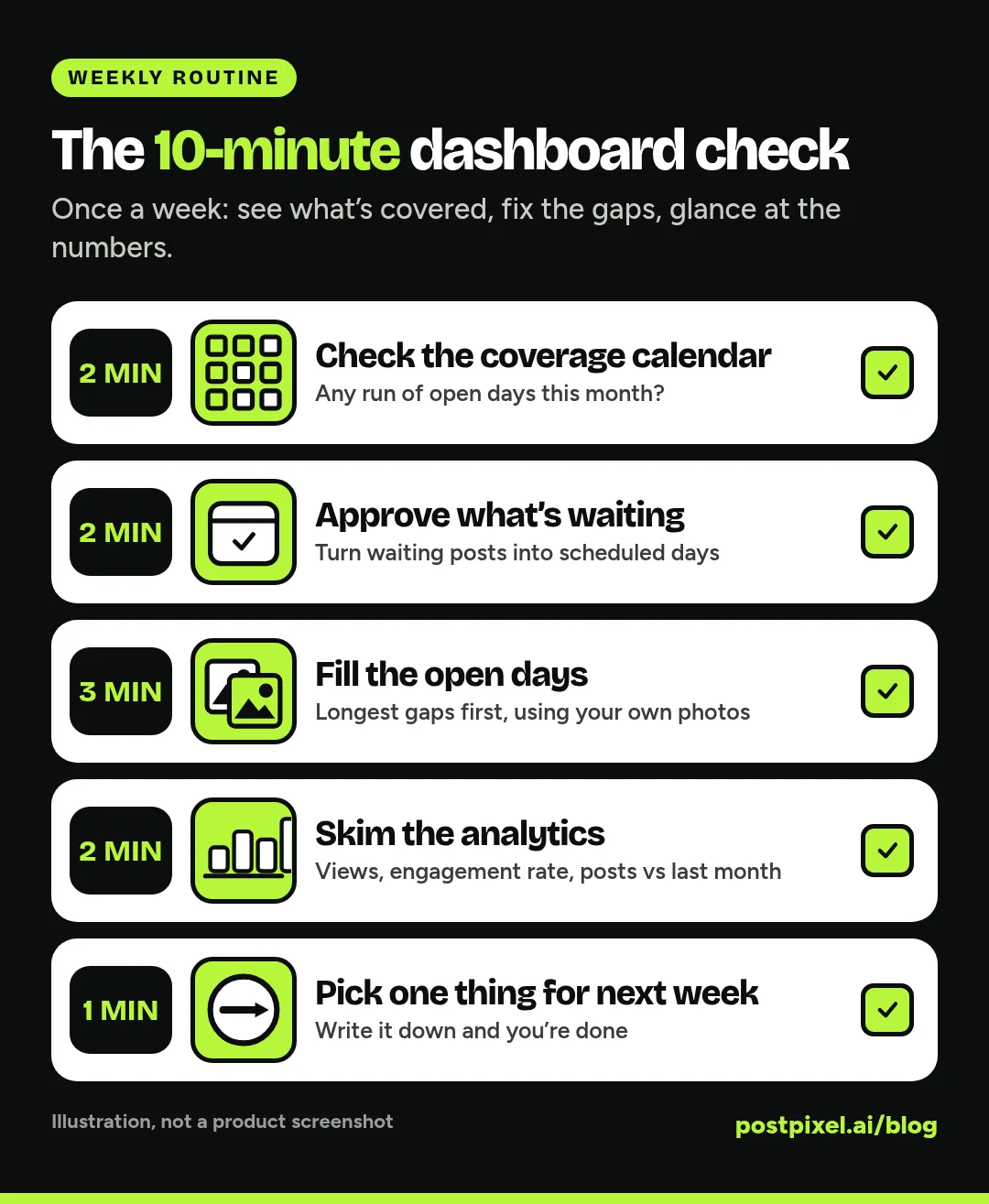
An illustration of the routine, not a screenshot of PostPixel.
- Minutes 1 to 2: scan the coverage calendar. Look at the rest of the month. Note any run of open days and any posts that are waiting.
- Minutes 3 to 4: approve what’s waiting. Approve what’s ready and fix what isn’t. It’s the fastest way to turn gaps into scheduled days.
- Minutes 5 to 7: fill the open days. Create or schedule posts for the open stretches. You don’t need to fill every day. Cover the longest gaps first.
- Minutes 8 to 9: skim the analytics. Look at views, engagement rate and posts published compared with last month. Ask one question: is anything clearly up or down?
- Minute 10: choose one thing for next week. It might be “more before-and-afters,” “get the crew to send photos on Fridays,” or “nothing, it’s working.”
Do this weekly and you won’t go quiet for two weeks by accident.
The product tour and how-to guides
The new dashboard also includes an interactive product tour and how-to guides. They give you step-by-step help exploring features and making the most of PostPixel.
If you’re new, start with the tour to get your bearings before you build anything. If you’ve been using PostPixel for a while, open a guide when you’re about to try something you haven’t used yet. It’s quicker than guessing.
Social analytics: how your posts are performing
The dashboard now shows how your posts are performing across your connected accounts. You’ll see:
- Views. How many times your posts were seen.
- Engagement rate. How much people interacted with your posts relative to how many saw them.
- Posts published. How many posts went out, shown against last month.
- A views-over-time chart. The shape of your views across the period.
- A per-platform breakdown. How your connected accounts compare with each other.
How to read them without overthinking it
You don’t need to become an analyst. A few simple habits go a long way:
- Compare to last month, not to a big brand. A local roofer needs to be seen in their service area. The useful question is whether you’re doing better than you were.
- Watch posts published next to views. If you published fewer posts than last month, lower views aren’t a mystery. That’s a coverage problem, and the coverage calendar is where you fix it.
- Use the chart for patterns, not single days. One spike or dip means little. A steady slide over several weeks means it’s time to change something.
- Use the platform breakdown to decide where to spend time. If one account is doing much better than another, give it a little more attention.
Analytics won’t tell you what to post, but they show you where to look.
Action required: reconnect your social media accounts
To enable analytics, you need to reconnect your social media accounts. This is the one step you have to do yourself.
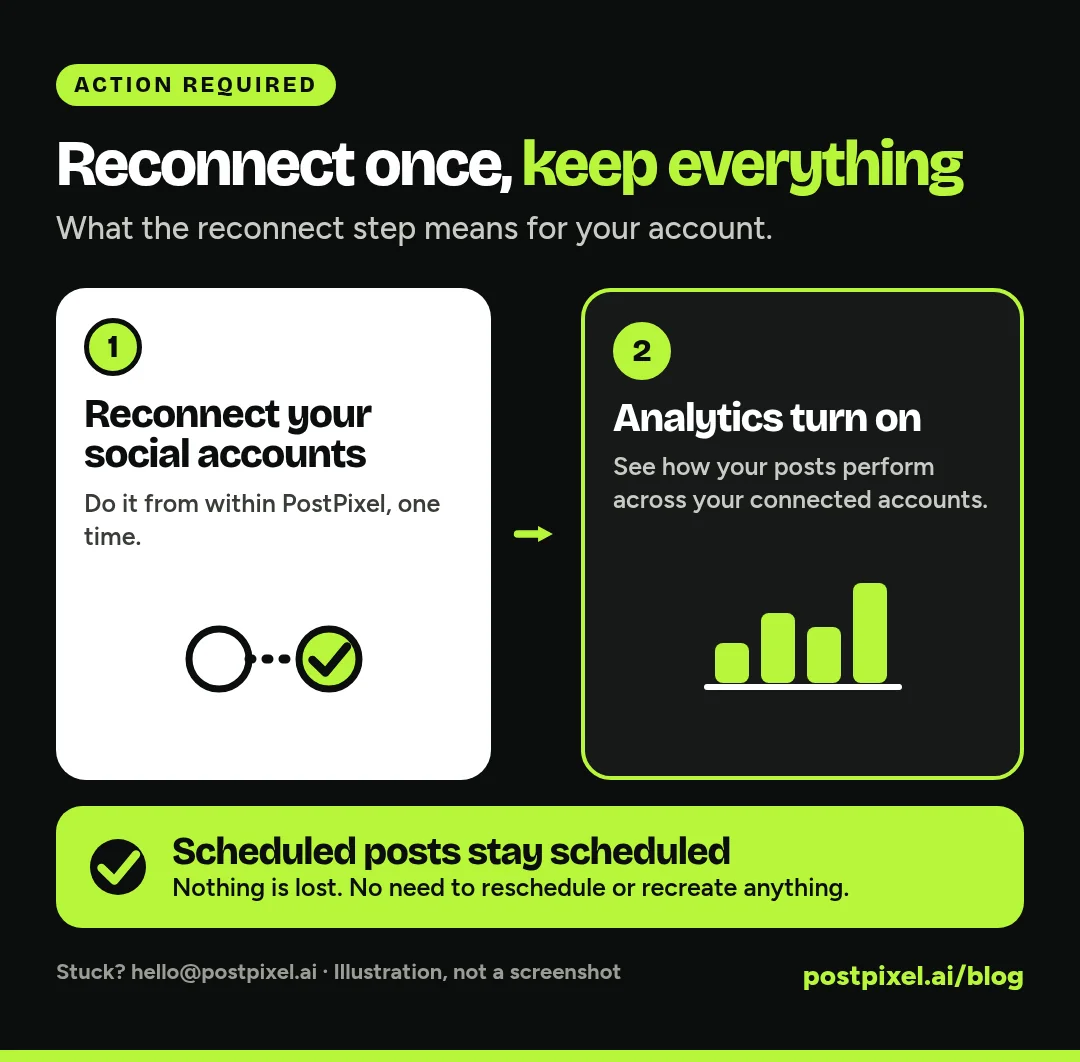
An illustration of what to expect, not a screenshot of PostPixel.
What to do: reconnect your social accounts from within PostPixel. If you aren’t sure which accounts you’ve connected, reconnect each one you post to.
What stays the same: all currently scheduled posts remain scheduled. Nothing is lost. You don’t need to reschedule anything or recreate any posts.
What you get: once your accounts are reconnected, analytics are enabled and you’ll see how your posts are performing across them.
If you get stuck, contact support at hello@postpixel.ai and we’ll help you through it. Until you reconnect, analytics won’t be enabled, so it’s worth doing soon.
A note for agencies
If you manage social media for several local clients, the dashboard fits the weekly rhythm in our guide to managing social media for multiple clients.
- One workspace per client. Each client workspace has its own Brand Kit, so logos, colors and fonts stay separate. You check each client from their own workspace.
- A Friday gap check. Look at each client’s coverage calendar for the rest of the month.
- Reconnect for each client. If you’ve connected a client’s accounts, reconnect them too.
- A simple client check-in. Views, engagement rate and posts published against last month make a short summary for a monthly call.
For more on growing a client base without growing your hours, read how to scale your agency with automated social media.
What it costs
PostPixel is an AI social media tool that turns a local business’s own photos into finished, on-brand posts. 500+ companies have signed up, and it saves up to 20 hours a month on content creation. Plans for a single business start from $49 a month (Solopreneur $49, Teams $79). The Agency plan is $99 a month and includes 3 client workspaces, with $37 a month for each extra workspace. The Precision editor is on every plan, and comment and review management for QA is on Teams and Agency. There’s a 7-day free trial, and you can cancel anytime.
FAQ
What is the coverage calendar in PostPixel?
It’s a monthly card on your dashboard that shows your scheduled, needs-approval and published posts. You use it to spot open days and keep your accounts active. There’s no separate calendar page. It’s all on the dashboard.
Do I need to do anything to get analytics?
Yes. You need to reconnect your social media accounts to enable analytics. Your scheduled posts stay scheduled and nothing is lost. If you get stuck, email hello@postpixel.ai.
Will reconnecting my accounts delete my scheduled posts?
No. All currently scheduled posts remain scheduled. You don’t need to recreate or reschedule anything.
What do the analytics show?
Views, engagement rate and the number of posts published compared with last month, plus a views-over-time chart and a breakdown by platform. They cover your connected accounts.
Run your first 10-minute check this week
Reconnect your accounts so analytics can switch on, then run the 10-minute check once.
Start a 7-day free trial, connect your accounts and see where your month stands. No contracts, and you can cancel anytime.